Updated on February 23, 2026, by OpenEDR
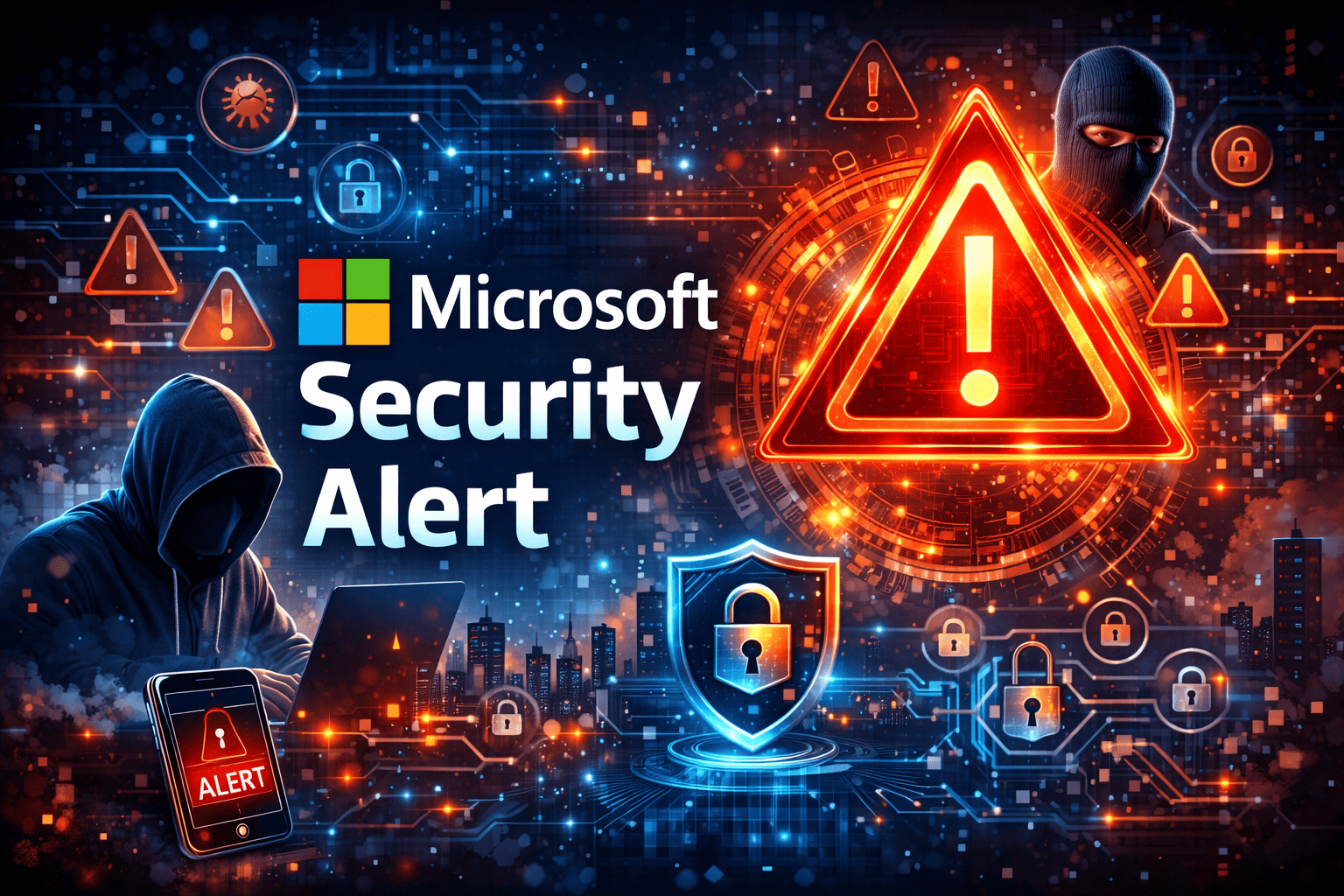
Have you ever seen a sudden Microsoft security alert pop up on your screen and wondered whether it was real or a scam? You are not alone. Millions of users encounter Microsoft security alert messages every year—some legitimate, others malicious.
For IT managers, cybersecurity teams, CEOs, and business owners, understanding how to handle a Microsoft security alert is critical. A real alert could signal malware, suspicious login activity, or system vulnerabilities. A fake one could be a phishing attempt designed to steal credentials or financial data.
In this comprehensive guide, we’ll explain what a Microsoft security alert is, how to verify it, common scams to watch for, and the best practices to protect your organization.
What Is a Microsoft Security Alert?
A Microsoft security alert is a notification generated by Microsoft security systems, such as:
Microsoft Defender
Microsoft 365 Security Center
Azure Security Center
Microsoft Entra ID (formerly Azure AD)
Windows Security
These alerts notify users or administrators about suspicious activity, malware detection, account compromise attempts, or policy violations.
However, cybercriminals often imitate Microsoft security alert messages to trick users into revealing sensitive information.
Types of Microsoft Security Alerts
Understanding the type of Microsoft security alert you receive helps determine the appropriate response.
1. Account Security Alerts
These alerts notify you about:
Unusual login attempts
Sign-ins from unfamiliar locations
Suspicious IP addresses
Multiple failed login attempts
These Microsoft security alert messages typically come via email or through the Microsoft account dashboard.
2. Malware Detection Alerts
Microsoft Defender may trigger a Microsoft security alert if it detects:
Malware infections
Potentially unwanted applications
Ransomware behavior
Suspicious downloads
These alerts appear within Windows Security or Microsoft Defender dashboards.
3. Cloud Security Alerts
In enterprise environments, Microsoft security alert notifications may originate from:
Microsoft 365 Defender
Azure Security Center
Microsoft Sentinel
These alerts flag abnormal activity in cloud workloads or user behavior.
4. Compliance and Policy Alerts
Organizations using Microsoft 365 may receive a Microsoft security alert related to:
Data loss prevention (DLP) violations
Risky file sharing
Insider threat behavior
Unauthorized access attempts
Compliance alerts are essential for regulated industries.
How to Tell If a Microsoft Security Alert Is Real
Cybercriminals frequently create fake Microsoft security alert pop-ups and phishing emails.
Signs of a Legitimate Alert
A real Microsoft security alert will:
Come from official Microsoft domains (e.g., microsoft.com)
Appear inside official Microsoft dashboards
Avoid requesting immediate payment
Not display random phone numbers to call
Signs of a Fake Microsoft Security Alert
Be cautious if you see:
Pop-ups with loud warnings
Urgent requests to call a support number
Grammar mistakes
Requests for remote access
Demands for payment in gift cards or cryptocurrency
Microsoft does not lock your screen and demand payment.
What to Do When You Receive a Microsoft Security Alert
Responding correctly to a Microsoft security alert can prevent further damage.
Step 1: Verify the Source
Log into your Microsoft account directly via the official website. Do not click suspicious links in emails.
Step 2: Check Activity Logs
Review sign-in history and recent activity to confirm whether suspicious behavior occurred.
Step 3: Reset Compromised Credentials
If the Microsoft security alert indicates account compromise:
Change your password immediately
Enable multi-factor authentication (MFA)
Revoke unknown sessions
Step 4: Run a Full Security Scan
If the alert relates to malware:
Run Microsoft Defender full scan
Update your operating system
Remove suspicious applications
Step 5: Report Suspicious Alerts
Report phishing attempts to Microsoft and your internal security team.
Why Microsoft Security Alerts Matter for Enterprises
For business leaders, a Microsoft security alert is not just a notification—it is a signal of potential risk.
Identity-Based Threats Are Rising
Attackers increasingly target credentials instead of deploying obvious malware.
Microsoft security alert notifications related to:
Risky sign-ins
Privilege escalation
Conditional access failures
should be taken seriously.
Cloud and SaaS Risks
As organizations adopt Microsoft 365 and Azure, Microsoft security alert systems monitor:
API misuse
Unauthorized data sharing
Abnormal user behavior
Ignoring alerts can lead to regulatory violations and data breaches.
Best Practices for Managing Microsoft Security Alerts
Effective alert management reduces alert fatigue and improves response times.
Centralize Alert Monitoring
Use tools like:
Microsoft Sentinel
SIEM platforms
Extended Detection and Response (XDR) systems
Centralization improves visibility.
Prioritize Alerts by Risk Level
Not all Microsoft security alert notifications are equally urgent.
Classify alerts into:
Informational
Medium risk
High risk
Critical
Focus on high-impact threats first.
Automate Response Where Possible
Automation can:
Isolate compromised accounts
Block malicious IP addresses
Trigger password resets
Disable suspicious sessions
Automation reduces response time.
Train Employees
Employees should know how to:
Identify fake Microsoft security alert pop-ups
Avoid phishing links
Report suspicious emails
Enable MFA on accounts
Human awareness strengthens defense.
Industry-Specific Considerations
Different industries face unique Microsoft security alert challenges.
Financial Services
Banks must monitor account compromise alerts to prevent fraud and regulatory violations.
Healthcare
Healthcare organizations rely on Microsoft security alert systems to protect patient data and maintain HIPAA compliance.
Retail and E-Commerce
Retailers use Microsoft security alert notifications to detect payment fraud and unauthorized access.
Manufacturing
Industrial environments must secure cloud-connected systems and remote access accounts.
Common Microsoft Security Alert Scams
Understanding scams helps prevent compromise.
Tech Support Scams
Fake Microsoft security alert pop-ups claim your device is infected and instruct you to call a number.
Phishing Emails
Emails impersonate Microsoft and urge users to reset passwords via malicious links.
Fake Defender Updates
Scammers send fake software update prompts that install malware instead.
How to Strengthen Protection Beyond Microsoft Security Alerts
While Microsoft security alert systems are powerful, organizations should adopt layered defense.
Implement Zero Trust Architecture
Verify every access request continuously.
Deploy Advanced Threat Detection
Use behavioral analytics to detect anomalies.
Conduct Regular Security Audits
Review configurations and patch vulnerabilities.
Maintain Backup Systems
Protect against ransomware by maintaining secure, offline backups.
Frequently Asked Questions (FAQs)
1. What is a Microsoft security alert?
A Microsoft security alert is a notification from Microsoft systems indicating suspicious activity, malware detection, or potential account compromise.
2. Are all Microsoft security alerts legitimate?
No. Many scammers create fake alerts. Always verify alerts through official Microsoft platforms.
3. What should I do if I clicked on a fake Microsoft security alert?
Disconnect from the internet, run a full security scan, change your passwords, and contact your IT security team immediately.
4. How can I prevent Microsoft security alert scams?
Enable MFA, avoid clicking unknown links, keep software updated, and educate employees on phishing awareness.
5. Do enterprises need additional tools beyond Microsoft security alerts?
Yes. While Microsoft tools provide strong protection, combining them with advanced detection and Zero Trust strategies enhances security posture.
Final Thoughts: Turn Alerts into Action
A Microsoft security alert is a valuable early warning system—but only if you act on it properly. Whether you manage enterprise infrastructure or run a growing business, understanding how to verify and respond to these alerts protects your organization from costly breaches.
Cyber threats will continue to evolve. However, with proper monitoring, employee training, and layered security controls, you can stay ahead of attackers.
Ready to strengthen your cybersecurity knowledge and defenses?
👉 Register now to explore advanced security training and solutions:
https://openedr.platform.xcitium.com/register/
Stay informed. Stay protected. Stay secure.

 Loading...