Updated on November 28, 2025, by OpenEDR
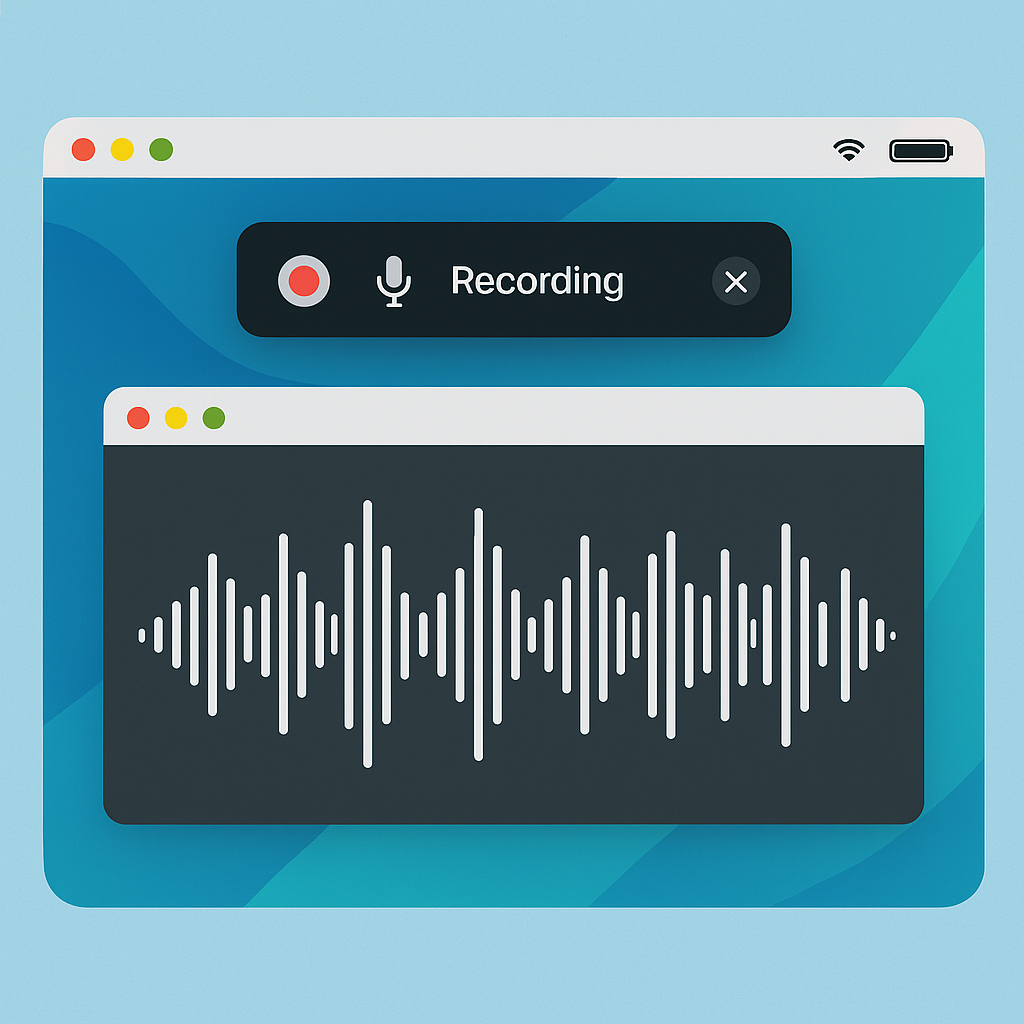
If you’re searching for mac screen and audio recording software, you’re likely looking for a reliable and secure way to record video, screen activities, and internal system audio on macOS. Whether you’re an IT manager documenting troubleshooting steps, a cybersecurity analyst recording incident reproductions, or a CEO needing professional training videos, having the right recording tools is essential.
Screen and audio recording has become a critical skill in modern business—used for technical workflows, compliance, secure communication, and remote collaboration. And while macOS includes basic recording features, most professionals require more advanced tools with editing, internal audio capture, secure sharing, and workflow automation.
This guide breaks down everything you need to know about the best Mac screen and audio recording software, key features, security considerations, top professional tools, and expert recommendations for enterprise environments in 2026.
Why Mac Screen and Audio Recording Software Is Essential Today
Recording your screen isn’t just for tutorials anymore. In cybersecurity and IT, visual documentation accelerates troubleshooting, strengthens communication, and creates reliable audit trails.
Here’s why it matters:
1. Cybersecurity Incident Response
Analysts often need to record:
Attack patterns
Malware behavior
Live threat reproductions
Forensic walkthroughs
This helps SOC teams and investigators review events accurately.
2. IT Support & Troubleshooting
Support engineers use recordings to:
Recreate errors
Document fixes
Train junior technicians
Provide visual explanations to end users
3. Training & Onboarding
Companies rely on high-quality recording tools to produce:
Employee onboarding videos
Product demonstrations
Workflow tutorials
Executive training modules
4. Compliance & Audit Documentation
Regulated industries—finance, healthcare, government—require precise visual logs to support:
System changes
Security reviews
Access audits
5. Remote Work & Communication
Teams now share screen recordings to communicate asynchronously without meetings.
Built-In Screen Recording on macOS: What You Can Do for Free
Before exploring third-party mac screen and audio recording software, let’s look at the native macOS tools.
1. Screenshot Toolbar (Shift + Command + 5)
Allows:
Full-screen recording
Window recording
Selected-area recording
Microphone input
Save-to-folder options
2. QuickTime Player
Offers:
Basic screen recording
Microphone capture
Simple exporting
Limitations of Built-In Tools
No internal system audio capture
No editing or annotation
No multi-track audio
No advanced export formats
No team collaboration tools
Not ideal for enterprise workflows
That’s why security, IT, and business professionals rely on third-party tools with stronger features.
Best Mac Screen and Audio Recording Software in 2026
Below is a curated list of the top tools, ranked by functionality, security, user experience, and enterprise readiness.
1. ScreenFlow (Professional Recording + Editing)
Best For: Training videos, business tutorials, complex recordings
ScreenFlow is one of the most advanced mac screen and audio recording software solutions available.
Top Features
Full-resolution screen recording
System + microphone audio recording
Multi-track editing
Callouts, transitions, and effects
Mouse cursor highlighting
Zoom-and-pan animations
Why Professionals Use It
Perfect for creating polished training content, executive presentations, and technical documentation.
2. OBS Studio (Open Source & Highly Customizable)
Best For: Cybersecurity analysts, IT engineers, advanced users
OBS Studio is free and extremely powerful.
Top Features
Multi-screen recording
Real-time audio mixing
Virtual camera
Plugin support
High-performance encoding
Why It’s Ideal for IT & Cybersecurity
OBS can record:
Multiple desktops
Virtual machine environments
Network monitoring dashboards
Forensic demonstrations
It’s also open source—important for security transparency.
3. Snagit (Best for Quick Documentation)
Best For: IT teams, daily documentation, help desk operations
Snagit focuses on ease of use.
Top Features
Image + screen recording
Internal + external audio capture
Step-by-step templates
Annotation tools
Trim & quick edit tools
Why IT Teams Love It
Snagit speeds up documentation workflows dramatically.
4. Camtasia (Full Studio-Level Editing)
Best For: Professional video editing + recording in one tool
Camtasia is ideal for teams who need both screen capture and advanced editing.
Top Features
Multi-track timeline
Green-screen support
Voiceovers
Animations & visual effects
Drag-and-drop editing
Security Note
Camtasia stores data locally—preferred for sensitive enterprise content.
5. Loom (Fast Communication Tool)
Best For: Remote teams, quick updates, async workflows
Loom allows instant screen + audio recording and cloud sharing.
Top Features
Webcam bubble
Instant upload
Sharing links
Viewer analytics
Security Consideration
Cloud-based storage may require additional approval in compliance-heavy organizations.
6. CleanShot X (Mac-Focused Productivity Tool)
Best For: Mac power users, creators, and technical teams
CleanShot X provides a beautifully designed UI with robust capture options.
Top Features
Internal audio recording
Annotations
Scrolling capture
Cloud library
Clean UI
7. QuickTime Extensions (With Add-Ons)
Add-ons like Soundflower or BlackHole allow QuickTime to capture system audio.
Pros
Free
Lightweight
Cons
Not user-friendly for non-technical users
Limited functionality
Key Features to Look for in Mac Screen and Audio Recording Software
When evaluating which tool to use, consider these features:
1. System Audio Recording
Critical for:
App demos
Incident reproductions
Training videos
Compliance logs
Not all apps capture system audio natively on macOS.
2. Multi-Track Audio Editing
Allows separate:
Voiceover
System sounds
External mic audio
Essential for high-quality production.
3. Annotation & Highlight Tools
Useful for:
Tutorials
Workflows
Technical documentation
Look for tools with arrows, text, blur, and focus features.
4. Export Options
Choose tools that support:
MP4
GIF
MOV
High-resolution formats
5. Security & Compliance
Critical for enterprise use.
Look for:
Local data storage
Encryption
SOC 2 compliance
Enterprise access control
On-premise options
6. Editing Capabilities
Advanced users need:
Trimming
Transitions
Callouts
Cursor effects
Audio leveling
Security Considerations When Using Screen Recording Tools
Because screen recording can expose sensitive information, security is essential.
1. Avoid Recording Sensitive Data
Redact or blur:
Passwords
SSNs
Customer records
Internal dashboards
2. Store Recordings Securely
Use:
Encrypted storage
Secure drives
Limited-access folders
Never store sensitive recordings in public cloud folders without approval.
3. Use a Dedicated Recording Environment
Cybersecurity teams often record inside:
Virtual machines
Secure desktops
Isolated environments
This prevents accidental exposure of confidential information.
4. Follow Internal Compliance Policies
Industries like:
Finance
Healthcare
Government
…require strict policies before recording screens or audio.
5. Audit Access to Recordings
Ensure only authorized stakeholders can view internal recordings.
Step-by-Step: How to Record Screen + Audio on Mac (Built-In)
Here’s a quick guide using macOS tools.
Step 1: Press Shift + Command + 5
Opens the recording toolbar.
Step 2: Choose Your Recording Area
Entire screen
Selected window
Custom area
Step 3: Open “Options”
Select:
Microphone input
Save location
Timer
Step 4: Click “Record”
Recording begins immediately.
Step 5: Stop Recording
Click the stop icon in the top-right menu bar.
Tip:
Internal audio requires third-party tools (e.g., BlackHole, Loopback).
Advanced Tips for IT Managers and Cybersecurity Professionals
1. Record Security Incidents Safely
Use a secure virtual environment to avoid capturing sensitive host data.
2. Create Video SOPs for Teams
Improves training and reduces onboarding time.
3. Archive Recordings for Incident Response
Use structured labeling:
Ticket ID
Date + Time
System used
4. Use Encryption on Export
Especially important for regulated industries.
5. Integrate Screen Recording Into Your EDR Workflow
Record:
Malware execution
Exploit reproduction
Behavioral analysis
Then attach recordings to incident response logs.
FAQs: Mac Screen and Audio Recording Software
1. Can Mac record system audio natively?
Not directly. You need third-party tools like Loopback or BlackHole.
2. What is the best Mac screen and audio recording software for beginners?
Snagit or CleanShot X—simple yet powerful.
3. What is the best tool for advanced cybersecurity work?
OBS Studio or ScreenFlow due to multi-track support and advanced features.
4. How do I record internal audio only?
Use tools like Loopback, SoundSource, or BlackHole with a compatible recorder.
5. Is it safe to record sensitive sessions?
Yes—if you use secure storage, isolated environments, and follow compliance rules.
Final Thoughts
Choosing the right mac screen and audio recording software can dramatically enhance productivity, training, documentation, IT troubleshooting, and cybersecurity workflows. From built-in macOS tools to advanced professional solutions like ScreenFlow, OBS, Snagit, and Camtasia, every organization can find tools tailored to their needs.
In security-sensitive environments, screen recording becomes a powerful ally—helping analysts investigate threats, document incidents, and improve defense strategies.
For maximum safety, combine your screen recording workflows with enterprise-grade endpoint protection and monitoring.
🚀 Enhance Your Security Posture With OpenEDR®
👉 Register here: https://openedr.platform.xcitium.com/register/

 Loading...