Updated on February 25, 2026, by OpenEDR
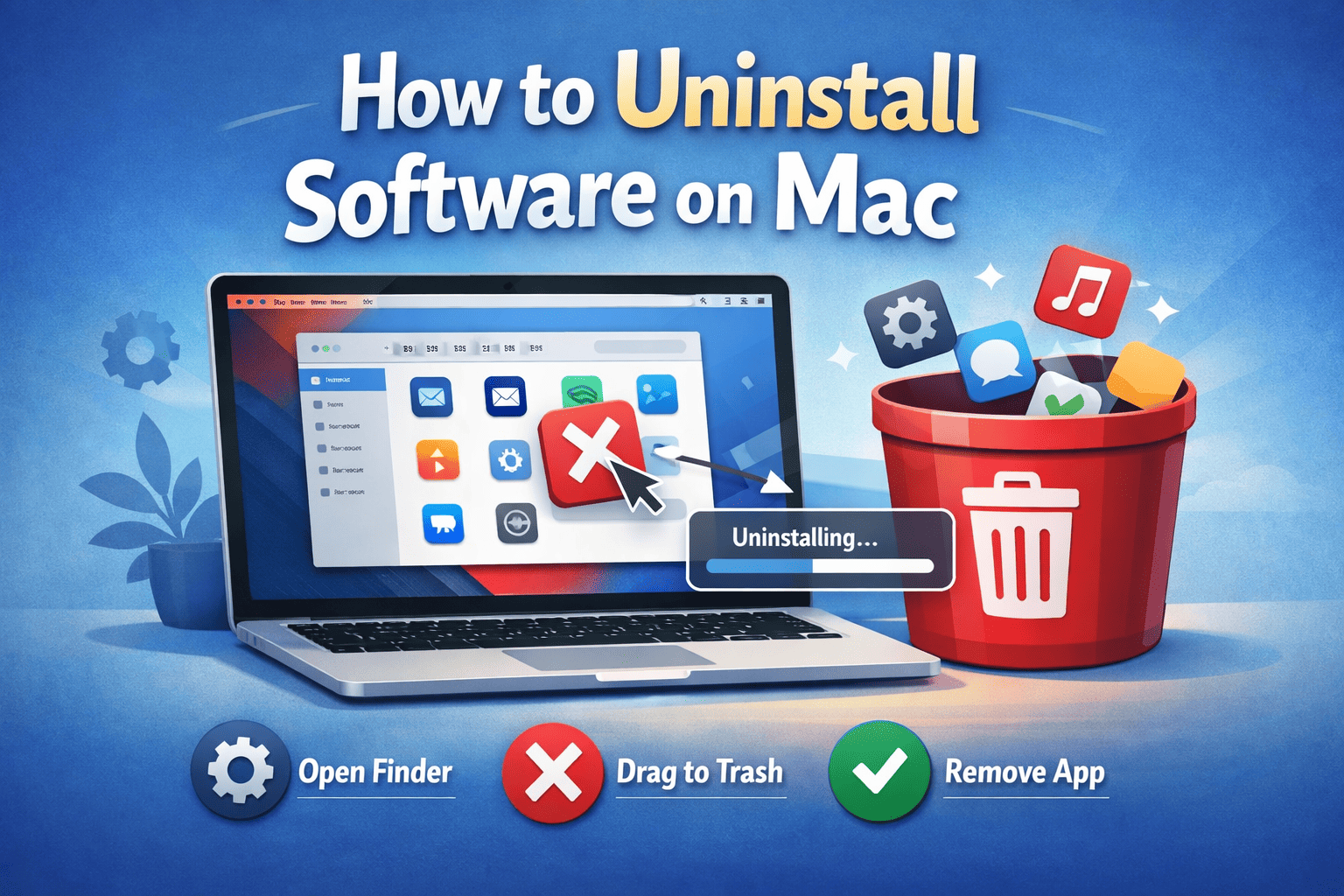
If you’re wondering how to uninstall software on Mac, you’re not alone. Many users simply drag an app to the Trash and assume it’s gone. However, that approach often leaves behind hidden files, background processes, and system clutter. Over time, leftover files can slow performance and even create security risks.
For IT managers, cybersecurity teams, CEOs, and founders managing Mac environments, knowing how to uninstall software on Mac properly is essential. Unused applications may contain vulnerabilities, outdated components, or unauthorized access permissions. Removing them correctly improves both performance and security.
In this comprehensive guide, we’ll explain how to uninstall software on Mac step by step, remove residual files, protect system integrity, and strengthen your organization’s cybersecurity posture.
Why Properly Uninstalling Software on Mac Matters
Understanding how to uninstall software on Mac goes beyond freeing up storage space. Improper removal can cause:
Residual system files
Startup process slowdowns
Security vulnerabilities
Software conflicts
Compliance concerns in enterprise environments
Old software may not receive updates. That makes it a potential attack surface. Removing unused applications reduces exposure to threats.
Method 1: How to Uninstall Software on Mac Using Finder
The simplest way to uninstall applications on macOS is through Finder.
Step-by-Step Process
Open Finder.
Click Applications in the sidebar.
Locate the app you want to remove.
Drag it to the Trash, or right-click and select Move to Trash.
Empty the Trash.
This method works for many apps. However, it may not remove associated configuration files.
Method 2: How to Uninstall Software on Mac Using Launchpad
Launchpad works well for apps downloaded from the App Store.
Steps
Open Launchpad from the Dock.
Locate the app.
Click and hold the app icon until it wiggles.
Click the X button to delete.
This method removes the app, but leftover files may remain in system folders.
Why Dragging to Trash Is Not Always Enough
Many applications create support files in hidden directories. If you want to fully understand how to uninstall software on Mac securely, you must remove these residual components.
Common leftover locations include:
~/Library/Application Support/~/Library/Preferences/~/Library/Caches/~/Library/Logs/
Removing these files prevents clutter and security risks.
Method 3: How to Uninstall Software on Mac Manually (Advanced Removal)
For enterprise environments, manual removal may be necessary.
Step 1: Remove the Application
Delete the app from the Applications folder.
Step 2: Access the Library Folder
Open Finder.
Click Go in the menu.
Hold the Option key and select Library.
Step 3: Search for Related Files
Look for folders matching the application name in:
Application Support
Preferences
Caches
Delete relevant files carefully.
Step 4: Restart the System
Restart to ensure background processes are fully removed.
Using Third-Party Tools to Uninstall Software on Mac
Many businesses prefer automated solutions.
Benefits of Uninstaller Tools
Identify hidden files
Remove background agents
Clear launch daemons
Reduce manual errors
However, only use reputable software. Downloading unverified uninstall tools can introduce malware.
Security Risks of Unused Mac Software
Understanding how to uninstall software on Mac is also a cybersecurity practice.
Outdated Applications
Old apps may contain:
Unpatched vulnerabilities
Insecure libraries
Deprecated encryption methods
Cybercriminals often exploit outdated software.
Unauthorized Permissions
Unused apps may still have access to:
Microphone
Camera
File system
Network resources
Removing them reduces privacy risks.
How IT Managers Should Handle Software Removal at Scale
In enterprise environments, managing multiple Mac devices requires centralized control.
Use Device Management Tools
Mobile Device Management (MDM) platforms allow administrators to:
Push uninstall commands remotely
Restrict unauthorized apps
Enforce compliance policies
Monitor software inventory
Centralized visibility improves governance.
Conduct Regular Software Audits
IT teams should:
Review installed applications quarterly
Remove unused software
Verify patch levels
Identify shadow IT applications
Routine audits reduce attack surfaces.
Performance Benefits of Properly Uninstalling Software
Learning how to uninstall software on Mac improves system performance.
Reduced Startup Load
Fewer background processes mean faster boot times.
More Storage Space
Removing large applications frees disk space.
Improved System Stability
Eliminating conflicting apps reduces crashes.
Common Mistakes When Uninstalling Software on Mac
Avoid these errors:
Deleting system apps accidentally
Removing essential drivers
Forgetting to empty Trash
Ignoring hidden Library files
Installing risky cleanup tools
Caution protects system integrity.
How to Remove Malware from Mac
Sometimes users search how to uninstall software on Mac after noticing suspicious behavior.
Signs of Malware
Unexpected pop-ups
Slow performance
Unknown background processes
Browser redirects
In such cases:
Remove suspicious applications.
Check startup items.
Run trusted security software.
Security scans ensure complete removal.
Best Practices for Secure Mac Software Management
Prevention reduces the need for emergency uninstalls.
Install Only Trusted Applications
Download apps from official sources.
Enable Automatic Updates
Keep software current to patch vulnerabilities.
Limit Administrative Access
Restrict installation privileges to authorized users.
Monitor Permissions
Review privacy settings regularly.
Compliance and Governance Considerations
For regulated industries, knowing how to uninstall software on Mac helps maintain compliance.
Data Protection
Removing unauthorized applications reduces data exposure risk.
Audit Readiness
Maintaining clean software inventories supports compliance audits.
Access Control
Limiting unnecessary applications enforces least privilege principles.
Frequently Asked Questions
1. Is dragging an app to Trash enough to uninstall software on Mac?
It removes the main app but may leave hidden files behind.
2. How do I remove leftover files after uninstalling?
Check the Library folder for related files and delete them carefully.
3. Can uninstalling software improve Mac performance?
Yes. Removing unused apps reduces startup load and frees storage.
4. Is it safe to use third-party uninstall tools?
Yes, if downloaded from reputable sources. Avoid unknown utilities.
5. How often should businesses review installed software?
At least quarterly, or more frequently in high-security environments.
Final Thoughts: Secure and Optimize Your Mac Environment
Knowing how to uninstall software on Mac properly is more than a convenience—it’s a security best practice. Removing unused applications reduces vulnerabilities, improves performance, and strengthens overall system hygiene.
For businesses managing multiple Mac devices, structured software management ensures compliance, reduces risk, and maintains operational efficiency.
If you’re ready to enhance your cybersecurity knowledge and protect your organization’s systems, take the next step today.
👉 Register now to explore advanced cybersecurity training and solutions:
https://openedr.platform.xcitium.com/register/
Protect your devices. Strengthen your security. Stay ahead of threats.

 Loading...