Updated on November 20, 2025, by OpenEDR
Have you ever noticed your computer slowing down for no obvious reason? Maybe your applications take longer to load, you’re running out of storage, or your system feels cluttered with unnecessary files. If so, you’re not alone — and there’s a simple solution: a disk cleanup tool.
Disk cleanup tools are essential for keeping your computer running smoothly, especially in 2025 when software, browsers, and operating systems generate more temporary and hidden files than ever before. Whether you’re an everyday user, IT manager, security professional, or business owner, understanding how disk cleanup works can help you maintain better performance, reduce security risks, and extend your system’s lifespan.
In this conversational guide, we’ll walk through exactly what a disk cleanup tool does, why it matters, how it improves your device’s speed, and practical tips to keep your system running like new.
Let’s get started.
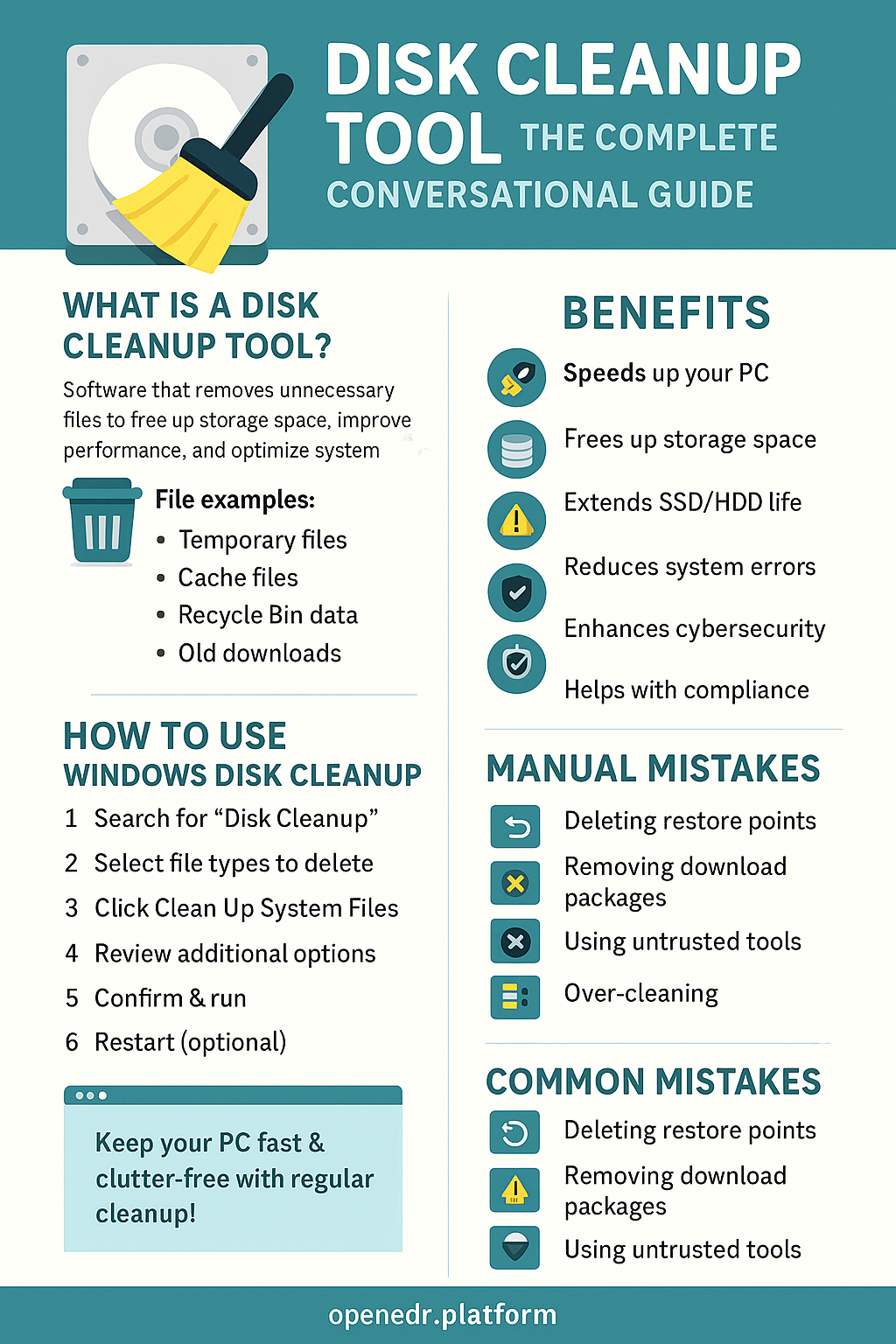
⭐ What Is a Disk Cleanup Tool? (Simple Definition)
A disk cleanup tool is software designed to remove unnecessary files from your computer to free up storage space, improve performance, and optimize system health.
It targets files such as:
Temporary system files
Browser cache
Recycle bin data
Old downloads
Crash reports
Unused applications
Windows update leftovers
Log files
Junk created by software
In simple terms:
👉 A disk cleanup tool gets rid of all the clutter slowing down your PC.
⭐ Why Disk Cleanup Matters in 2026
With modern systems generating more data than ever, junk files accumulate quickly. This leads to:
✔ Slower PC performance
✔ Storage running out
✔ Software freezing or crashing
✔ Poor startup times
✔ Reduced SSD lifespan
✔ Increased security vulnerabilities
Even if you use advanced cybersecurity tools or EDR platforms like Xcitium OpenEDR, your system still needs regular cleaning to maintain top performance.
Disk cleanup is the simplest, fastest, and most effective maintenance you can perform.
🔍 What Causes Storage Bloat? (Why PCs Become Slow)
Here are the top reasons your computer fills up with unnecessary data:
1. Temporary Files
Apps create temporary files that rarely get deleted automatically.
2. Browser Cache & Cookies
Every webpage you visit stores files locally.
3. Windows Update Residue
Old update files can take gigabytes of space.
4. Recycle Bin Overflow
Deleted files still sit in the Recycle Bin until fully removed.
5. App Installers & Old Programs
Apps you no longer use still leave traces behind.
6. System Logs & Crash Dumps
Debugging files accumulate after system events.
7. Duplicate Files
Photos, videos, and documents get duplicated easily.
8. Hidden Temporary Folders
Windows creates massive temp folders under the hood.
A disk cleanup tool helps remove all of these — safely and automatically.
What Does a Disk Cleanup Tool Remove?
Here are the most common file types removed:
Temporary Windows files
Old system restore points
Cache files
Internet temporary files
Cookies
Memory dump files
Old program installers
Thumbnails cache
Error reporting files
Unused language packs
Recycle bin files
Windows upgrade leftovers
Everything it deletes is non-essential, meaning your system stays safe.
🔐 Disk Cleanup and Cybersecurity: Do They Work Together?
Absolutely — and here’s why.
Junk files aren’t just annoying; they can be risky.
✔ Browsers store sensitive information
Cache may include:
Login pages
Cookies
Session tokens
Attackers love this data.
✔ Temporary files may contain sensitive logs
Old logs or system information can reveal clues about your system.
✔ Unused applications may have vulnerabilities
The more software you have installed, the bigger the attack surface.
✔ Old files increase malware hiding spots
Malicious files sometimes mimic system clutter.
This is why IT teams and cybersecurity professionals always combine:
Disk cleanup
EDR tools (e.g., Xcitium OpenEDR)
Patching
User training
System monitoring
Cleanup is part of good cyber-hygiene.
⭐ Types of Disk Cleanup Tools
There are several options depending on your operating system and needs.
1. Built-in Disk Cleanup (Windows)
Windows has a built-in tool called “Disk Cleanup” and the newer “Storage Sense.”
Pros: Free, safe, easy
Cons: Limited features
2. Third-Party Cleanup Tools
Examples include:
CCleaner
BleachBit
Glary Utilities
Wise Disk Cleaner
Pros: Feature-rich
Cons: Some require caution or subscriptions
3. Enterprise Disk Cleanup Tools
Used by IT teams to manage multiple devices.
Pros: Centralized control
Cons: More complex to deploy
4. Cloud-Integrated Cleanup Tools
Manage files stored in:
OneDrive
Google Drive
Dropbox
Good for businesses using cloud storage.
⭐ Benefits of Using a Disk Cleanup Tool
Let’s break down the biggest advantages.
✔ 1. Speeds Up Your PC
Removing junk files improves:
Boot time
App loading speed
System responsiveness
✔ 2. Frees Up Storage Space
Recover several gigabytes instantly.
✔ 3. Extends SSD and HDD Life
Less unnecessary read/write activity improves health.
✔ 4. Reduces System Errors
Clutter can cause app freezes or system crashes.
✔ 5. Enhances Cybersecurity
Removing cached data reduces exposure to threats.
✔ 6. Improves Software Performance
Apps run smoother when system resources are freed.
✔ 7. Reduces Background Processes
Temporary processes get cleaned out.
✔ 8. Helps With Compliance
Clean systems reduce data retention risks.
🧠 When Should You Run a Disk Cleanup Tool?
Here are recommended intervals:
✔ Light Users: Every 2–4 weeks
✔ Moderate Users: Weekly
✔ Heavy Users (IT, gaming, multimedia): Every 2–3 days
✔ Enterprise Systems: Automated daily or weekly
If your PC feels slow, noisy, or low on space — run it immediately.
How to Use the Windows Disk Cleanup Tool (Step-by-Step)
Let’s walk through it.
1. Search for “Disk Cleanup”
Open it from the Start Menu.
2. Select the drive you want to clean
Usually C:.
3. Choose file types to delete
Check categories like:
Temporary Internet Files
Recycle Bin
Thumbnails
4. Click “Clean Up System Files”
This reveals:
Windows update files
System logs
Old restore points
5. Confirm & run
Let the tool remove unnecessary data.
6. Restart (optional)
For deeper cleanup, a restart helps.
🔧 Manual Cleanup Tips (Advanced Users)
If you prefer a hands-on approach:
✔ Delete temp files
%temp% and C:\Windows\Temp
✔ Clear browser cache
Chrome, Firefox, Edge, etc.
✔ Remove unused programs
Through Control Panel or Settings.
✔ Disable startup apps
Improves boot time.
✔ Use Storage Sense
Automates cleanup.
✔ Clean Downloads folder
A common source of junk.
✔ Empty Recycle Bin
Simple but often forgotten.
Disk Cleanup vs Disk Defragmentation: What’s the Difference?
| Feature | Disk Cleanup | Defragmentation |
|---|---|---|
| Purpose | Deletes unnecessary files | Organizes file fragments |
| Storage Impact | Frees up space | No change in space |
| Speed Impact | Improves performance | Speeds up file access |
| Best For | SSD & HDD | Mostly HDD |
SSDs do NOT need defragmentation.
🧩 Common Mistakes People Make with Disk Cleanup
❌ Deleting system restore points
You may need these for recovery.
❌ Removing essential download packages
Drivers or installers still needed.
❌ Using untrusted third-party tools
Some include malware or bloatware.
❌ Cleaning too aggressively
Over-cleaning can delete important app data.
Use tools carefully — or stick to trusted ones.
🎯 Conclusion: A Disk Cleanup Tool Keeps Your System Fast, Clean & Secure
If you’ve been wondering how to maintain your PC’s performance, reduce clutter, and avoid slowdowns, the answer is simple:
👉 Use a disk cleanup tool regularly.
It improves speed, frees space, enhances cybersecurity, and prolongs device lifespan — all with just a few clicks.
Whether you’re an everyday user or a tech professional, disk cleanup is a must-have part of your digital routine.
🔐 Keep Your System Secure with Xcitium OpenEDR (Free Registration)
Protect your PC with real-time threat detection and modern endpoint protection.
👉 https://openedr.platform.xcitium.com/register/
❓ FAQs About Disk Cleanup Tools
1. What is a disk cleanup tool?
Software that removes unnecessary files to free storage and improve performance.
2. Does disk cleanup delete important files?
No — it targets non-essential system and temporary files.
3. Is disk cleanup safe for Windows 10/11?
Yes, the built-in Disk Cleanup and Storage Sense are fully safe.
4. How often should I run disk cleanup?
Weekly for most users; more often for heavy users.
5. Does disk cleanup improve speed?
Yes — it can significantly improve startup time and overall performance.

 Loading...