Updated on August 31, 2026, by OpenEDR
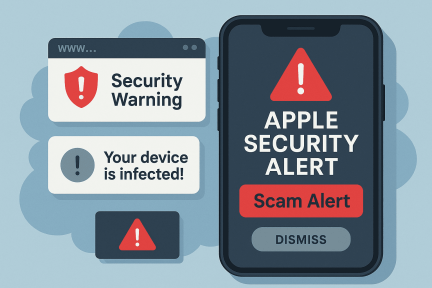
Have you ever received a pop-up or email claiming, “Apple Security Alert: Your device has been compromised!”? If so, you’re not alone. The Apple security alert scam has become one of the most widespread and convincing forms of online fraud — targeting millions of users worldwide.
Cybercriminals exploit the trust users place in Apple’s brand, creating fake alerts that mimic real system warnings. Their goal? To steal your credentials, install malware, or gain remote access to your device.
In this guide, we’ll break down what the Apple security alert scam really is, how to recognize it, and what steps you can take to protect your data and business from these sophisticated attacks.
What Is the Apple Security Alert Scam?
The Apple security alert scam is a deceptive tactic used by cybercriminals to trick users into believing that their Apple device — iPhone, Mac, or iPad — has been infected with a virus or hacked.
Typically, this scam takes the form of:
A pop-up message in Safari or Chrome claiming your device is compromised
A phishing email or SMS urging you to “verify” your Apple ID
A fake call from “Apple Support” offering to fix the issue
Once users panic and follow the instructions, they’re redirected to malicious websites or tricked into sharing sensitive information like Apple ID credentials, payment details, or remote access permissions.
Fake Apple Security Alert vs. Real Apple Notification
This comparison should replace the current table because the existing version oversimplifies how genuine Apple alerts work.
| Feature | Fake Apple Security Alert | Genuine Apple Security Communication |
|---|---|---|
| Browser pop-up saying “virus detected” | Common | Apple warns these are usually fraudulent |
| Demands immediate phone call | Common | Suspicious |
| Asks for Apple Account password | Common phishing tactic | Genuine threat notifications do not |
| Asks for verification code | Common | Genuine threat notifications do not |
| Asks you to install software/profile | Common | Genuine threat notifications do not |
| Requests gift-card payment | Scam | Apple does not require this |
| Uses threats or extreme urgency | Common | Strong warning sign |
| Can be verified at account.apple.com | No | Genuine Apple threat notifications can |
| May appear in iPhone Settings/Lock Screen | Website imitation possible | Genuine threat notifications may appear there |
Apple explicitly says its genuine mercenary-spyware threat notifications never ask recipients to click links, open files, install applications or profiles, or provide Apple Account passwords or verification codes.
How the Apple Security Alert Scam Works
To understand how the scam operates, let’s break down its step-by-step process:
1. The Fake Alert Appears
You might see a popup that says:
“Apple Security Alert: Your device is infected with malware. Contact Apple Support immediately at 1-800-XXX-XXXX.”
2. Induced Panic
The alert is designed to trigger fear. It may claim your personal photos, passwords, or credit card data are at risk.
3. The Scam Link or Phone Number
Victims are instructed to click a link or call a “support number.” This connects them to cybercriminals posing as Apple technicians.
4. The “Assistance” Trap
Scammers may ask you to download a remote access tool or share a one-time verification code. This grants them control of your device.
5. The Data Theft
Once inside, attackers can install malware, steal credentials, or charge fees for fake services.
What Does the Apple Security Alert Scam Look Like?
Fake alerts can appear in several forms.
Fake Virus Pop-Up
A webpage may display messages such as:
“Your iPhone has been infected.”
“Apple Security Alert.”
“Viruses detected on your Mac.”
“Your personal information is at risk.”
The message then attempts to make you click, download something, or call a number.
Fake Apple Support Call
A scammer claims to represent Apple Support and says:
- Your account has been hacked.
- Suspicious purchases were detected.
- Your iCloud account was breached.
- Malware was detected.
- Your device needs urgent repair.
Apple advises users who receive unsolicited or suspicious calls claiming to be Apple Support to hang up.
Apple Account Phishing Email
The email may claim:
- Your Apple Account has been locked.
- Someone signed into your account.
- Your payment failed.
- Your iCloud storage is expiring.
- You made an unfamiliar purchase.
The goal is usually to make you visit a fake Apple login page.
Fake Apple Text Message
Smishing messages may claim that:
- Your Apple Account was compromised.
- Your iPhone was located.
- A purchase needs verification.
- Your account will be suspended.
Apple warns users not to click suspicious email or text links or provide information on websites they cannot verify as legitimate.
Fake Apple Support Payment Request
Scammers may eventually request:
- Credit card information
- Bank details
- Cryptocurrency
- Gift cards
Apple’s current scam guidance specifically warns that scammers may create urgency and demand gift-card redemption codes.
Common Variations of the Apple Security Alert Scam
The scam has evolved over time and now appears in several forms. Knowing these variations helps you spot the threat before it’s too late.
1. Fake iCloud Login Alerts
You receive an email claiming suspicious activity on your iCloud account, urging you to log in via a fraudulent website.
2. Pop-Up Virus Warnings
While browsing, a pop-up warns that your “Apple device is infected” and prompts you to install a “security update.”
3. Tech Support Calls
Scammers impersonate Apple Support, warning of “breaches” and requesting remote access.
4. Fake App Store Subscriptions
Users receive false notifications about unauthorized App Store purchases, followed by links to “verify your payment method.”
5. SMS Phishing (Smishing)
Messages pretending to be Apple ask you to click links to secure your device — often leading to credential theft.
10 Signs an Apple Security Alert Is Fake
Look for these warning signs:
- It appears as a frightening browser pop-up.
- It claims viruses were suddenly detected by a webpage.
- It gives you a phone number to call immediately.
- It asks for your Apple Account password.
- It requests a two-factor authentication code.
- It tells you to install an app or configuration profile.
- It requests remote access to your Mac.
- It asks for payment or gift cards.
- It uses threats or extreme urgency.
- It directs you to an unfamiliar website.
Apple advises users not to trust browser pop-ups that claim the device has viruses or security problems.
How to Identify a Fake Apple Security Alert
Cybercriminals have mastered the art of imitation. However, with careful observation, you can distinguish between a real Apple alert and a fake one.
Red Flags to Watch For:
Poor grammar or spelling errors
Urgent language (e.g., “Act immediately!”)
Non-Apple URLs (check for “apple.com” domain authenticity)
Phone numbers listed in pop-ups (Apple never includes numbers)
Requests for personal data or payment
Unsolicited attachments or links
If it seems too alarming or pushy, it’s likely fake.
Legitimate Apple Alerts vs. Fake Alerts
| Feature | Real Apple Alert | Fake Apple Security Alert |
|---|---|---|
| Source | From official Apple app or settings | From web browsers or third-party sites |
| Tone | Informational and neutral | Urgent or threatening |
| Contact Method | Through Apple Support website only | Via unsolicited phone numbers |
| Links | Directs to apple.com domains | Redirects to unknown URLs |
| Action Required | Log in via Apple ID portal | Share credentials or install “software” |
Why These Scams Are So Effective
Cybercriminals succeed because they exploit user trust in the Apple brand. According to research by Proofpoint, Apple-themed phishing attacks account for nearly 25% of all global phishing attempts.
Key factors include:
Apple’s reputation for strong security makes alerts more believable
Visual consistency — scammers replicate Apple’s design perfectly
User panic leads to impulsive clicks
Increasing reliance on cloud storage and Apple Pay
In short, the scam thrives on fear and urgency.
Steps to Take If You Receive an Apple Security Alert Scam
If you encounter a suspicious Apple security warning — don’t panic. Follow these steps to protect your data and device.
1. Do Not Click Links or Call Numbers
Avoid interacting with any part of the message — even the “Cancel” button in pop-ups can trigger downloads.
2. Close Your Browser
On a Mac, press Command + Q or use Force Quit (Option + Command + Esc) if the pop-up won’t close.
3. Clear Browser Cache and History
This removes malicious scripts that trigger recurring alerts.
Safari:
Go to Safari > Clear History > All Time.
4. Run a Security Scan
Use reputable antivirus or endpoint protection software to ensure your system is clean.
5. Change Your Apple ID Password
Visit the official Apple ID website directly (not through links) and reset your credentials.
6. Report the Scam
Forward suspicious emails to reportphishing@apple.com and block fraudulent phone numbers or URLs.
How to Remove Apple Security Alert Scam From iPhone or iPad
This is a major competitor gap on the existing OpenEDR article.
Step 1: Close the Scam Page
Do not tap:
- Scan
- Fix
- Remove Virus
- Allow
- Download
- Call Support
Close the malicious browser tab instead.
Step 2: Clear Safari Website Data if Necessary
If the page repeatedly returns, clear relevant Safari browsing/website data through the device’s Safari settings.
Be aware that clearing website data can sign you out of websites.
Step 3: Enable Safari Security Features
Apple provides Safari controls for:
- Block Pop-ups
- Fraudulent Website Warning
These can be managed through Safari settings.
Step 4: Remove Suspicious Apps
If the scam persuaded you to install an unfamiliar application, investigate and remove it if it is not trusted.
Step 5: Review Unknown Configuration Profiles
If you followed instructions to install a configuration or device-management profile, review it carefully.
Do not remove legitimate workplace or school management profiles without consulting the administrator.
Step 6: Update iOS or iPadOS
Install current operating-system security updates.
Apple recommends keeping devices updated with the latest software and security fixes.
Preventing Apple Security Alert Scams: Best Practices
Proactive defense is the best strategy against scams.
1. Enable Two-Factor Authentication (2FA)
This ensures even if your password is compromised, attackers cannot access your account.
2. Keep Software Updated
Apple frequently releases patches to address vulnerabilities in macOS and iOS.
3. Use Official Channels Only
Visit support.apple.com for assistance — never third-party links or unsolicited pop-ups.
4. Install Endpoint Protection
Tools like Xcitium Endpoint Protection can detect and block malicious scripts before they load.
5. Educate Employees and Family Members
Phishing awareness training reduces risk for organizations and households alike.
Is the Apple Security Alert a Virus?
The fake alert itself is usually a social-engineering or phishing scam, not necessarily a virus.
For example, a malicious webpage can display a frightening warning without infecting the device.
However, malware can become involved if the scam convinces the victim to:
- Download malicious software.
- Install an unwanted browser extension.
- Install an unauthorized profile.
- Give an attacker remote access.
This distinction should be prominent because users searching this keyword frequently want to know whether seeing the warning means their device is already infected.
How Businesses Are Targeted with Apple Security Alert Scams
Enterprise environments using Apple devices are not immune. Attackers may target:
Executives with iPhones linked to sensitive accounts
Employees using Apple devices for remote work
Corporate Apple IDs linked to payment methods
Business Consequences Include:
Data breaches via compromised accounts
Financial loss from fraudulent support fees
Reputational damage from leaked information
Businesses should implement Zero Trust security models, ensuring every device is verified before accessing corporate systems.
Case Study: A Real-World Apple Security Scam
In late 2024, cybersecurity researchers uncovered a large-scale phishing campaign impersonating Apple Support. Victims received SMS messages stating:
“Apple Security Alert: Your iCloud has been breached. Click here to restore access.”
Those who clicked were directed to a cloned Apple ID page. Attackers collected login data, then used it to access backups and Apple Pay accounts.
The campaign affected thousands globally and demonstrated how social engineering remains a top threat vector.
Apple’s Official Recommendations
Apple advises users to:
Never share passwords or verification codes
Avoid downloading third-party “security apps”
Verify messages at appleid.apple.com
Use Apple’s official reporting email for suspicious messages
Apple also states:
“Apple does not notify users of security issues via phone calls, pop-ups, or unsolicited emails.”
Fake Apple Alert vs. Apple Mercenary Spyware Threat Notification
This is one of the biggest missing topical opportunities.
| Fake Scam Alert | Apple Threat Notification |
|---|---|
| Mass social-engineering scam | Highly targeted security notification |
| Often says generic “virus detected” | Related to sophisticated targeted spyware |
| May demand immediate payment | Does not demand payment |
| May provide fake support number | Does not ask you to call a random number |
| May request credentials | Does not request password/code |
| May demand software installation | Does not ask you to install apps/profiles |
| Cannot be verified in Apple Account | Can be verified directly through Apple Account |
Apple says mercenary-spyware attacks target a very small number of people and that the vast majority of users will never encounter them.
How AI and Endpoint Security Tools Can Help
Modern threats require modern solutions. AI-driven cybersecurity tools, like Xcitium’s OpenEDR, can automatically detect phishing domains, isolate compromised devices, and block fake alerts.
These platforms:
Monitor system behavior in real time
Detect anomalies using machine learning
Contain malicious code before it spreads
By integrating AI threat intelligence, users and businesses can stay ahead of evolving scams.
Conclusion: Stay Smart, Stay Secure
The Apple security alert scam continues to evolve — becoming more sophisticated with every new wave of attacks. But with awareness, vigilance, and the right cybersecurity tools, you can protect yourself and your organization from falling victim.
Always remember: Apple never sends unsolicited security alerts or requests personal information.
👉 Stay secure with next-generation protection.
Register for Xcitium OpenEDR to gain advanced threat detection, endpoint containment, and real-time phishing protection for all your Apple devices.
FAQs: Apple Security Alert Scam
1. Is the Apple security alert real or fake?
If it appears as a browser pop-up or email asking for information, it’s fake. Apple does not send such alerts.
2. What should I do if I called a fake Apple number?
Disconnect immediately, change your Apple ID password, and contact Apple Support to verify your account’s safety.
3. Can Apple detect these scams automatically?
Apple’s systems block many threats, but user vigilance and endpoint protection remain crucial.
4. Are Macs immune to viruses?
No — while macOS is more secure than most systems, phishing and malware attacks still target Apple users.
5. How can I report Apple-related scams?
Forward messages to reportphishing@apple.com or use the “Report Junk” option in Messages or Mail.


 (8 votes, average: 3.88 out of 5)
 Loading...