
Updated on March 19, 2026, by OpenEDR
Have you ever tried installing software or running a program, only to be blocked by your antivirus? It’s a common situation. Many users search for how to turn off virus protection when security tools interfere with legitimate tasks.
However, disabling antivirus protection is not something to take lightly. While there are valid reasons to temporarily turn it off, doing so can expose your system to serious risks like malware, ransomware, and unauthorized access.
Understanding how to turn off virus protection safely—and when it’s appropriate—is essential for IT managers, cybersecurity professionals, and everyday users alike. In this guide, we’ll walk you through safe methods, risks, best practices, and alternatives to keep your systems protected.
What Does Turning Off Virus Protection Mean?
Virus protection refers to security software that detects, blocks, and removes malware from your system.
When you disable it, you temporarily stop:
Real-time threat detection
Malware scanning
Firewall protection (in some cases)
Behavioral monitoring
Learning how to turn off virus protection properly ensures you minimize exposure while performing necessary tasks.
Why Would You Turn Off Virus Protection?
Although not recommended for regular use, there are situations where temporarily disabling antivirus is necessary.
Common Reasons
Users may need to learn how to turn off virus protection for:
Installing trusted software incorrectly flagged as malware
Running specific development or testing tools
Troubleshooting system issues
Updating certain applications
Configuring system settings
Even in these cases, it’s important to proceed cautiously.
Risks of Turning Off Virus Protection
Before disabling your antivirus, it’s critical to understand the risks.
1. Increased Malware Exposure
Without protection, your system becomes vulnerable to:
Viruses
Trojans
Ransomware
Spyware
2. Real-Time Protection Disabled
Threats can enter your system without being detected.
3. Data Breaches
Sensitive data may be exposed if attackers gain access.
4. Network Vulnerabilities
Disabling security tools may expose your network to attacks.
Understanding these risks is key when deciding how to turn off virus protection safely.
How to Turn Off Virus Protection on Windows
Windows includes built-in antivirus called Microsoft Defender.
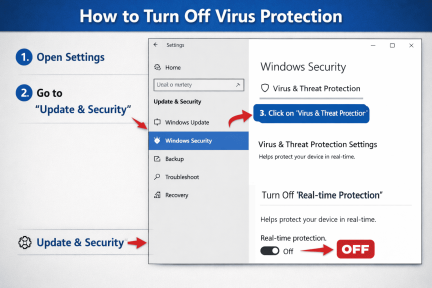
Step-by-Step Guide (Windows 10/11)
Open Settings
Click Privacy & Security
Select Windows Security
Click Virus & Threat Protection
Choose Manage Settings
Toggle off Real-time protection
Important Note
Windows may automatically re-enable protection after a short period.
This ensures your system is not left vulnerable for long.
How to Turn Off Virus Protection on Mac
Mac devices use built-in security features along with third-party tools.
Steps for Third-Party Antivirus
Open your antivirus application
Navigate to Settings or Preferences
Locate Real-time protection
Disable the feature temporarily
macOS Built-In Protection
macOS security features like Gatekeeper cannot be fully disabled but can be adjusted in system settings.
How to Turn Off Third-Party Antivirus Software
Different antivirus programs have slightly different steps.
General Steps
Open the antivirus dashboard
Go to settings or protection options
Disable real-time scanning
Set a time limit if available
Popular Antivirus Examples
Norton: Disable Auto-Protect
McAfee: Turn off Real-Time Scanning
Avast: Pause protection
Always remember to re-enable protection afterward.
Safe Alternatives to Turning Off Virus Protection
Instead of fully disabling antivirus, consider safer options.
1. Add Exceptions
Whitelist trusted files or applications.
Benefits
Keeps protection active
Prevents unnecessary alerts
Reduces risk
2. Use Sandbox Environments
Run programs in isolated environments.
3. Temporarily Pause Protection
Many antivirus tools allow temporary disabling for a set time.
4. Verify File Safety
Before disabling protection, scan files using trusted tools.
These alternatives reduce the need to fully learn how to turn off virus protection.
Best Practices for Turning Off Virus Protection
If you must disable antivirus, follow these best practices.
1. Disconnect from the Internet
This reduces exposure to external threats.
2. Disable for a Short Time Only
Turn protection back on immediately after completing your task.
3. Use Trusted Sources Only
Only install or run verified software.
4. Monitor System Activity
Watch for unusual behavior during the disabled period.
5. Re-Enable Protection Immediately
This is the most important step.
Common Mistakes to Avoid
Users often make mistakes when trying to disable antivirus.
Leaving Protection Disabled Too Long
This significantly increases risk.
Disabling Without Understanding Risks
Many users underestimate the dangers.
Ignoring Security Warnings
Warnings are often legitimate.
Downloading Unverified Files
This increases the chance of infection.
Avoiding these mistakes ensures safer use of how to turn off virus protection methods.
When You Should NOT Turn Off Virus Protection
There are situations where disabling antivirus is highly risky.
Avoid Turning It Off When:
Browsing unknown websites
Downloading files from the internet
Opening email attachments
Using public Wi-Fi
Accessing sensitive data
In these cases, antivirus protection should remain active.
Impact on Businesses and IT Environments
For organizations, disabling antivirus can have serious consequences.
Business Risks
Data breaches
Compliance violations
Financial loss
Operational disruption
IT Best Practices
Organizations should:
Restrict user permissions
Monitor endpoint activity
Use centralized security management
Implement zero trust policies
IT teams should carefully control when and how antivirus is disabled.
The Future of Antivirus and System Security
Modern security tools are becoming smarter.
Future developments include:
AI-driven threat detection
Behavioral analysis
Automated security responses
Cloud-based protection
These advancements reduce the need to manually learn how to turn off virus protection.
Frequently Asked Questions (FAQ)
How do I turn off virus protection safely?
Disable it temporarily through your antivirus settings and re-enable it immediately after completing your task.
Is it safe to turn off antivirus?
It can be safe for short periods if you follow best practices, but it increases security risks.
Why does antivirus block certain programs?
Antivirus may flag programs as potentially harmful based on behavior or unknown sources.
Can I permanently disable virus protection?
It is not recommended, as it leaves your system vulnerable to cyber threats.
What should I do instead of turning off antivirus?
Use exceptions, sandbox environments, or temporary pauses instead of full disabling.
Stay Secure While Managing Your System
Knowing how to turn off virus protection is useful—but knowing when NOT to is even more important. Cyber threats are constantly evolving, and even a short lapse in protection can lead to serious consequences.
Always prioritize security, use safe alternatives when possible, and follow best practices to minimize risk.
👉 Register for cybersecurity training today:
https://openedr.platform.xcitium.com/register/
Learn how to protect your systems, avoid cyber threats, and build a stronger cybersecurity strategy for your organization.

 Loading...