Updated on September 24, 2026, by OpenEDR
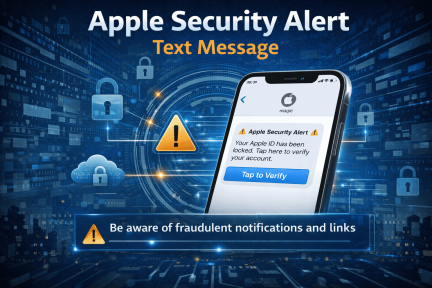
An Apple security alert text message is an SMS or iMessage claiming that there is suspicious activity involving your Apple Account, Apple Pay, iCloud, a device login, or a purchase.
Some security notifications from Apple are legitimate, but scammers frequently impersonate Apple through fake text messages designed to steal passwords, verification codes, financial information, or money.
If a message unexpectedly tells you to click a link, call a number, provide a security code, or urgently “verify” your account, treat it as suspicious until you confirm the activity through Apple’s official services.
Have you ever received an Apple security alert text message warning that your Apple ID was compromised or that suspicious activity was detected? If so, you’re not alone. Millions of Apple users receive these messages every year. Some alerts are legitimate security notifications, but many are actually phishing scams designed to steal personal information.
Cybercriminals increasingly target Apple users because Apple IDs are connected to valuable data such as iCloud storage, payment details, photos, and device backups. A fake Apple security alert text message can trick users into clicking malicious links or revealing sensitive information.
Understanding how these alerts work is critical for anyone using an iPhone, iPad, or Mac. In this guide, we’ll explain what an Apple security alert text message means, how to identify scams, and the steps you should take to protect your account and devices.
What Is an Apple Security Alert Text Message?
An Apple security alert text message is a notification claiming that suspicious activity has been detected on your Apple account. The message typically warns users that their Apple ID has been locked, compromised, or accessed from an unknown device.
In some cases, these alerts are legitimate. Apple may send notifications about:
New device logins
Password changes
Account recovery requests
Security updates
However, most Apple security alert text messages received through SMS are phishing attempts.
Is an Apple Security Alert Text Message Real?
It can be real, but many Apple security alert texts are phishing or smishing scams.
The safest approach is not to trust the message itself.
Instead:
- Do not click links in the text.
- Do not call a phone number listed in the message.
- Do not reply with passwords or verification codes.
- Open your Apple Account settings directly.
- Check your devices, account activity, and purchase history.
- Contact Apple through official support if necessary.
A legitimate-looking Apple logo, case number, or Apple-related URL does not automatically prove that the message is genuine.
Why Cybercriminals Use Apple Security Alert Text Message Scams
Attackers use social engineering to trick users into taking action quickly.
A typical Apple security alert text message scam creates a sense of urgency. The message may claim that your account will be locked or deleted unless you verify your identity immediately.
Common Goals of Attackers
Cybercriminals send fake Apple alerts to:
Steal Apple ID credentials
Access iCloud accounts
Capture credit card details
Install malware on devices
Conduct identity theft
Once attackers gain access to your Apple ID, they may also lock you out of your account.
How Apple Actually Sends Security Alerts
Understanding how Apple communicates helps users identify suspicious messages.
Legitimate Apple Security Notifications
Apple usually sends security alerts through:
Apple ID notifications on your device
Official Apple emails from verified domains
Security alerts within iCloud settings
Apple rarely sends Apple security alert text messages requesting sensitive information.
Real Apple Alert vs. Fake Apple Security Text
| Possible Legitimate Activity | Common Scam Behavior |
|---|---|
| Notification appears on a trusted Apple device | Unexpected SMS creates panic |
| Account activity can be verified in Settings | Message tells you to call an unfamiliar number |
| Purchase appears in official purchase history | Claims a purchase exists but offers only a phone number |
| You requested a verification code | Code arrives when you did nothing |
| You initiated account recovery | Message pressures you to “verify” immediately |
| Apple support interaction was initiated by you | Scammer contacts you first |
| No request to reveal password or 2FA code | Asks for password, code, card details, or payment |
The safest rule is simple: verify independently instead of following the instructions in the message.
Signs of a Fake Apple Security Alert Text Message
Spotting phishing attempts is one of the most effective ways to protect your account.
Suspicious Links
Many phishing messages contain links that mimic Apple websites.
Example of Fake URLs
Fake websites often resemble Apple domains but contain small differences.
Examples may include:
apple-idverify.com
apple-support-alert.net
secure-icloud-login.org
Always verify the domain before clicking any link.
Urgent or Threatening Language
Scammers frequently use urgent language to create panic.
A fake Apple security alert text message might say:
“Your Apple ID will be locked within 24 hours.”
“Unauthorized activity detected.”
“Verify your account immediately.”
Legitimate companies rarely use aggressive language in security alerts.
Requests for Personal Information
Apple will never ask users to provide sensitive information through text messages.
Be cautious if a message requests:
Passwords
Security codes
Credit card numbers
Social Security numbers
This is a clear sign of a phishing scam.
Poor Grammar or Spelling
Phishing messages often contain grammar mistakes or awkward phrasing.
While not always obvious, these errors can indicate a fraudulent message.
Common Apple Security Alert Scam Messages
Fake messages frequently use language such as:
- “Unauthorized Apple ID activity detected.”
- “Your Apple Account has been locked.”
- “Apple Pay purchase attempted.”
- “Suspicious login detected.”
- “Your account will be suspended.”
- “Verify immediately to avoid restrictions.”
- “Call Apple Support now.”
- “A new device has been added.”
- “Your iCloud account has been compromised.”
The exact wording changes frequently.
Do not judge a message only by spelling or grammar. Modern scams can look polished and professional.
What Happens If You Click a Fake Apple Security Alert Text Message
Clicking a phishing link may lead to a fake login page that looks identical to Apple’s official website.
Potential Consequences
Entering your credentials could allow attackers to:
Take control of your Apple ID
Access your personal data
Lock your devices remotely
Make unauthorized purchases
In some cases, malware may also be installed on your device.
How to Protect Yourself from Apple Security Alert Text Message Scams
Following basic cybersecurity practices can significantly reduce your risk.
Enable Two-Factor Authentication
Two-factor authentication (2FA) adds an additional layer of security.
Even if attackers obtain your password, they cannot access your account without the verification code.
Benefits of 2FA
Protects Apple ID login attempts
Prevents unauthorized device access
Enhances account security
Apple strongly recommends enabling this feature.
Verify Alerts Through Official Apple Channels
If you receive an Apple security alert text message, do not click the link.
Instead:
Open the Apple ID settings on your device.
Check for security notifications.
Visit Apple’s official website directly.
This helps confirm whether the alert is legitimate.
Avoid Clicking Suspicious Links
Never click unknown links in security alerts.
Instead, type Apple’s official website manually into your browser.
Use Strong Passwords
Strong passwords help prevent unauthorized access.
Best Password Practices
Use passwords that include:
Uppercase and lowercase letters
Numbers
Special characters
At least 12 characters in length
Avoid using the same password across multiple accounts.
Monitor Apple ID Activity
Regularly check your Apple ID account activity.
What to Watch For
Look for:
Unknown device logins
Unrecognized purchases
Security setting changes
Immediate action can prevent further damage.
What to Do If You Receive a Suspicious Apple Security Alert Text Message
If you receive a suspicious message, follow these steps.
Step 1: Do Not Click Any Links
Avoid interacting with the message.
Do not click links or download attachments.
Step 2: Report the Message
Apple allows users to report phishing attempts.
Forward suspicious Apple security alert text messages to:
Step 3: Delete the Message
After reporting the scam, delete the message to prevent accidental clicks.
Step 4: Check Your Apple ID Security
Log into your Apple ID account and verify:
Account activity
Security settings
Connected devices
Change your password if necessary.
Apple Security Features That Protect Users
Apple has implemented several security technologies to protect users from threats.
Built-In Security Measures
These include:
Two-factor authentication
Secure Enclave encryption
App Store security reviews
Privacy-focused operating systems
These features help reduce the impact of phishing attacks.
Why Phishing Attacks Target Apple Users
Apple users are attractive targets for cybercriminals.
Reasons for Targeting Apple Accounts
Apple IDs often store valuable data, including:
Personal photos
Financial information
Contact lists
Cloud backups
Additionally, Apple devices are widely used by professionals and business leaders.
Cybersecurity Lessons for Organizations
Even though an Apple security alert text message scam targets individuals, organizations should also educate employees about phishing risks.
Business Security Recommendations
Companies should:
Train employees on phishing awareness
Use endpoint security tools
Implement strong authentication policies
Monitor suspicious account activity
Cybersecurity awareness programs reduce social engineering risks.
What Does a Real Apple Security Notification Look Like?
A legitimate Apple notification may tell you about events such as:
- Sign-in activity
- Password changes
- Two-factor authentication requests
- Account recovery activity
- Device changes
However, appearance alone is not enough to prove legitimacy.
Attackers can imitate:
- Apple branding
- Professional formatting
- Security terminology
- Case numbers
- Apple-related URLs
Always verify the underlying event independently.
Future Trends in Mobile Security Threats
Mobile phishing attacks continue to grow as attackers target smartphone users.
Emerging threats include:
SMS phishing (smishing)
Fake app notifications
QR code phishing attacks
AI-generated phishing messages
Staying informed about these threats helps users remain protected.
What Should I Do If I Clicked the Link?
Clicking a phishing link does not always mean your Apple Account has been compromised.
The risk increases if you entered information or installed something.
If you clicked:
- Close the website.
- Do not download anything.
- Do not install configuration profiles or apps.
- Check whether you entered credentials.
- Review account activity.
- Update your device if necessary.
- Watch for unusual prompts or security changes.
If you entered your Apple password, take the additional steps below immediately.
What If I Shared My Two-Factor Authentication Code?
A verification code may allow an attacker who already knows your password to complete authentication.
If you shared a code:
- Change your Apple Account password.
- Review trusted devices immediately.
- Remove unknown devices.
- Check recent account activity.
- Review security settings.
- Contact Apple Support through an official channel if necessary.
Never approve an authentication request you did not initiate.
Frequently Asked Questions (FAQ)
1. Is an Apple security alert text message real?
Some alerts may be legitimate, but many are phishing scams. Always verify alerts through Apple’s official website or device notifications.
2. What should I do if I clicked a phishing link?
Immediately change your Apple ID password and review your account security settings.
3. Does Apple send security alerts via SMS?
Apple primarily sends alerts through device notifications or official emails, not text messages requesting personal information.
4. Can attackers access my iPhone through phishing?
Yes. If attackers obtain your Apple ID credentials, they may access iCloud data or lock your devices.
5. How can I secure my Apple ID?
Enable two-factor authentication, use strong passwords, and avoid clicking suspicious links.
Final Thoughts: Staying Safe from Apple Security Alert Text Message Scams
Phishing attacks are becoming increasingly sophisticated, and Apple security alert text message scams are one of the most common tactics used by cybercriminals. By understanding how these scams work and recognizing warning signs, users can avoid falling victim to social engineering attacks.
Staying vigilant, verifying alerts through official channels, and using strong security settings are essential steps in protecting your Apple devices and personal data.
Cybersecurity awareness remains one of the most effective defenses against modern digital threats.
👉 Strengthen your cybersecurity knowledge today:
https://openedr.platform.xcitium.com/register/
Learn how advanced security strategies can help protect your devices, accounts, and digital identity in an evolving threat landscape.

 Loading...