Updated on November 28, 2025, by OpenEDR
If you’re searching for screen capture software Mac, you’re likely looking for reliable tools to record screens, create tutorials, capture workflows, or document technical and cybersecurity processes. Whether you’re an IT manager, online security professional, CEO, or business leader, the ability to perform high-quality screen captures on macOS is essential — for training, audits, troubleshooting, compliance, and secure communication.
Today, screen recording is more than convenience; it’s a powerful business requirement. IT teams use screen captures for system documentation, cybersecurity teams record incidents for analysis, and executives rely on video walkthroughs for strategic communication. But with so many tools available, how do you choose the right screen capture software for Mac?
This comprehensive guide covers the best tools, features to look for, security considerations, and expert recommendations tailored to professional environments.
What Is Screen Capture Software on Mac?
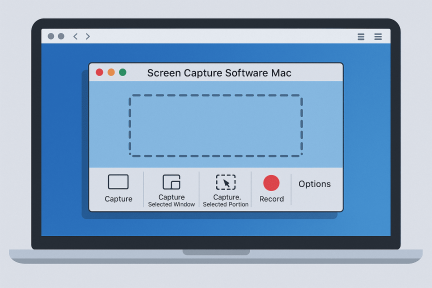
Screen capture software allows you to record your Mac screen or take screenshots. Modern tools include:
Full-screen recording
Window or region capture
Audio and microphone recording
Webcam overlay
Editing features
Exporting and cloud-sharing options
macOS includes a built-in screen capture tool, but professionals often require advanced features found in third-party apps.
Why Screen Capture Software Matters for IT and Cybersecurity Teams
Screen recording isn’t just for content creators — it plays a crucial role in security, operations, and enterprise communication.
1. Incident Documentation
Cybersecurity teams record suspicious activity or recreate attack paths.
2. Technical Training
IT departments use recordings for onboarding or patch management demos.
3. Compliance & Audit Trails
Regulated industries use screen capture for evidence and record-keeping.
4. Troubleshooting
Support teams replicate user issues visually.
5. Secure Reporting
Video documentation offers clarity and reduces miscommunication.
Built-in Screen Capture Tools on macOS (Free Option)
Before reviewing third-party solutions, let’s examine macOS’s default tool: Screenshot / Screen Recording.
How to Use it
Press:
Shift + Command + 5
To open screen capture options.
Available Features
Record full screen
Record selected portion
Take screenshots
Save to folder or clipboard
Microphone input
Timer settings
Limitations
Limited editing
No annotations
No cloud sharing
Not suitable for enterprise workflows
For basic tasks, it works well. But IT and cybersecurity teams often need more robust screen capture software Mac tools.
Best Screen Capture Software for Mac (2026 Edition)
Below are the top solutions based on performance, security, features, and enterprise suitability.
1. Snagit (TechSmith)
Best for: IT Teams, Technical Documentation, Training
Snagit is one of the most popular and powerful screen capture software Mac tools.
Key Features
Scrolling capture
Annotation tools
Step-by-step screenshots
Video recording
GIF creation
Templates and workflows
Why IT Teams Like It
Snagit supports structured documentation, making it ideal for SOPs, troubleshooting guides, and compliance reporting.
2. Camtasia
Best for: Professional video editing + screen recording
Built by TechSmith, Camtasia is designed for advanced editing.
Key Features
Multi-track video timeline
Screen + webcam combo
Visual effects and transitions
High-quality audio controls
Why It’s Popular
Perfect for training videos, product demos, and corporate presentations.
3. Loom
Best for: Quick communication & cloud-based sharing
Loom is a lightweight screen recording tool ideal for asynchronous work.
Key Features
Instant cloud uploads
Webcam bubble
Team video libraries
Viewer analytics
Security Note
Loom offers SOC 2 compliance but doesn’t store data locally by default — important for security-conscious organizations.
4. OBS Studio (Open Source)
Best for: Advanced users, cybersecurity analysts, streamers
OBS Studio is free, open-source, and highly customizable.
Key Features
Multiple input sources
High-performance encoding
Unlimited scenes
Audio mixing
Why Cybersecurity Teams Use It
Flexible enough to record multi-screen environments, virtual machines, and attack reproductions.
5. CleanShot X
Best for: Mac power users
A Mac-focused screen capture software with polished UI.
Key Features
Scrolling screenshots
Annotation and blur tools
Screenshot history
Instant cloud upload
Great For
Users needing fast captures, quick edits, and elegant workflows.
6. ScreenFlow
Best for: Professional screen recording with editing
ScreenFlow includes powerful editing tools similar to Camtasia.
Key Features
High-quality export
Mouse pointer animations
Zoom-and-pan effects
Media library
Ideal for instructional content and step-by-step walkthroughs.
7. QuickTime Player (Free)
Best for: Simple, lightweight recording
QuickTime is built into macOS and allows basic screen recording.
Limitations
No editing
No annotation
Limited file formats
Still useful for minimal needs.
Key Features to Look for in Screen Capture Software on Mac
When choosing the right tool, consider:
1. Recording Options
Look for:
Full screen
Windowed capture
Region selection
Multi-monitor support
2. Audio Recording
Essential features include:
Internal audio
Microphone recording
System sound capture
Noise suppression
3. Security & Compliance
This is crucial for enterprise environments.
Look for:
Local storage options
Encrypted uploads
SOC 2 compliance
On-premise or private cloud options
4. Editing Tools
To polish your recordings:
Trimming
Annotations
Blur tools (for sensitive data)
Subtitles
5. Collaboration Features
Useful for distributed teams:
One-click sharing
Cloud libraries
Team folders
Permission settings
Security Considerations When Using Screen Capture Software Mac
IT leaders and cybersecurity professionals must evaluate risks carefully.
Common Security Concerns
Sensitive data appearing on screen
Cloud storage vulnerabilities
Unauthorized access to recordings
Metadata exposure
Best Practices
Blur sensitive fields
Store videos securely
Limit recording permissions
Use on-prem or encrypted cloud solutions
Record on isolated VM when handling sensitive environments
Security mistakes during recording can expose:
Credentials
Personal data
Incident evidence
Internal systems
Choose software that aligns with organizational compliance.
Advanced Tips for IT Managers & Cybersecurity Analysts
Here’s how professionals maximize their screen recording workflows:
1. Use Virtual Machines for Demonstrations
Keeps the base system protected.
2. Maintain a Secure Content Repository
Organize recordings by:
Incident category
Ticket number
SOP type
3. Automate Cleanup Policies
Ensure recordings don’t remain past retention requirements.
4. Use Watermarking Tools
Protect sensitive assets or internal processes.
5. Integrate With Documentation Platforms
Combine screen recordings with:
Confluence
SharePoint
Notion
Internal wikis
Step-by-Step: How to Record Your Screen on a Mac (Built-in Method)
If you’re new to screen capture, here’s a quick refresher:
Step 1: Press Shift + Command + 5
Toolbar appears.
Step 2: Choose a recording option
Full screen
Selected window
Custom region
Step 3: Click “Options”
Set:
Microphone
Save location
Timer
Show mouse clicks
Step 4: Record
Use the Record button.
Step 5: Stop Recording
Click the stop icon in the menu bar.
FAQs: Screen Capture Software Mac
1. Does Mac have built-in screen capture software?
Yes — the Screenshot tool (Shift + Command + 5) and QuickTime both support recording.
2. Is recording internal audio supported on Mac?
Yes, but many apps require special permissions or additional drivers.
3. Which screen capture software is best for IT teams?
Snagit, OBS Studio, and ScreenFlow are the top choices for enterprise environments.
4. Is screen capture safe for sensitive info?
Yes — if used with secure storage, proper blurring, and access control.
5. Can I annotate screenshots on Mac?
Native tools support basic markup; third-party apps offer advanced annotation.
Final Thoughts
Choosing the right screen capture software Mac can significantly improve your productivity, communication, and documentation quality — especially for IT managers, security teams, and leaders who rely on accurate visual reporting. Whether you need advanced editing, cloud workflows, or secure on-prem storage, today’s tools offer powerful features tailored to every business need.
Screen capture software is now an essential part of cybersecurity, IT operations, and remote collaboration. Selecting the right tools ensures accuracy, reduces risk, and strengthens organizational knowledge.
🚀 Protect Your Endpoints & Screen Capture Workflows With OpenEDR®
👉 Register here: https://openedr.platform.xcitium.com/register/

 Loading...