
Updated on November 19, 2025, by OpenEDR
Has your Windows PC suddenly become slow, glitchy, or flooded with strange pop-ups? Maybe your browser keeps redirecting to weird sites, or you notice unknown programs running in the background. If so, there’s a good chance your system is infected with malware — and that’s exactly when you need a Windows malware removal tool.
With cyber threats growing faster than ever, Windows users face everything from ransomware and Trojans to spyware, keyloggers, and stealthy backdoors. In fact, Windows remains the most targeted operating system, with millions of malware samples created every week.
So, if you’re wondering what a Windows malware removal tool does, how it works, and which one is right for you — this clear, conversational guide walks you through everything step-by-step. Whether you’re an IT manager, cybersecurity expert, CEO, or simply someone who wants to keep their PC safe, this guide has you covered.
⭐ What Is a Windows Malware Removal Tool? (Simple Definition)
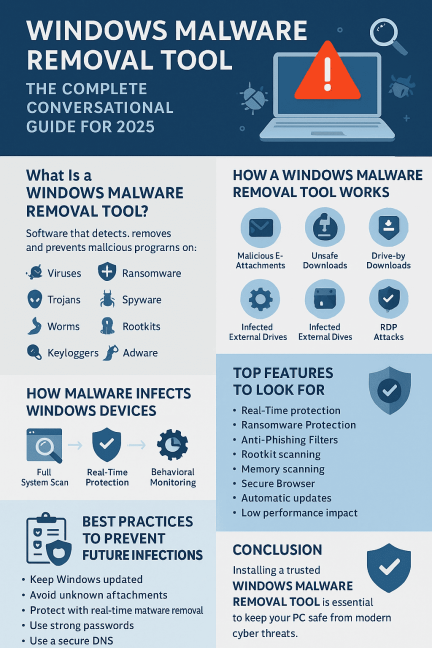
A Windows malware removal tool is specialized software designed to detect, remove, and prevent malicious programs on your PC. That includes threats like:
Viruses
Worms
Ransomware
Trojans
Rootkits
Spyware
Adware
Keyloggers
Backdoors
In simple terms:
👉 It’s a cleaning and protection system for your Windows computer — scanning for bad software, removing it, and stopping future infections before they happen.
Some tools focus only on detection, while others offer real-time protection, firewall controls, web filtering, and advanced threat hunting.
⭐ Why Windows PCs Need Malware Removal Tools in 2025
The threat landscape is more aggressive than ever.
Here’s why using a Windows malware removal tool is essential:
✔ Windows is the #1 target
Because of its popularity, attackers prioritize Windows.
✔ Malware attacks are more sophisticated
Today’s malware hides in memory, uses encryption, and evades traditional antivirus.
✔ Ransomware attacks are skyrocketing
Hackers know PCs store valuable business and personal data.
✔ Phishing attacks are more convincing
Most infections start with one wrong click.
✔ Shadow IT and remote work increase exposure
People mix personal and work systems, opening new risk paths.
✔ Built-in Windows Defender isn’t always enough
It’s strong — but not perfect, especially against advanced threats.
This makes third-party tools a critical layer of defense.
🚨 How Malware Infects Windows Devices (Common Attack Methods)
Understanding the problem makes prevention easier.
Here’s how Windows systems typically get infected:
1. Malicious Email Attachments
The #1 infection vector — disguised as invoices, resumes, or links.
2. Unsafe Downloads
Cracked software or free utilities often contain hidden payloads.
3. Fake Software Updates
Pop-ups claiming your system needs an “urgent update.”
4. Drive-by Downloads
Visiting a compromised website automatically downloads malware.
5. Infected USB or External Drives
A common method in corporate environments.
6. Remote Desktop Protocol (RDP) Attacks
Weak passwords + open RDP ports = easy entry for hackers.
7. Exploiting Outdated Software
Old versions of Windows, browsers, or plugins have vulnerabilities.
🧩 Types of Malware That Windows Malware Removal Tools Protect You From
Malware isn’t just “viruses.” Modern threats are much more diverse.
✔ Trojans – disguised malware pretending to be legitimate software
✔ Ransomware – encrypts files and demands payment
✔ Spyware – captures keystrokes, screenshots, or credentials
✔ Adware – floods your system with ads and trackers
✔ Worms – self-replicating malware that spreads fast
✔ Rootkits – hide inside the OS to avoid detection
✔ Botnets – turn your PC into a zombie for cybercriminals
✔ Keyloggers – steal passwords and banking data
✔ Backdoors – allow remote access to hackers
A strong malware removal tool identifies ALL of these.
🧰 How a Windows Malware Removal Tool Works
Let’s break down the process in a friendly way:
1. Full System Scan
The tool scans:
✔ Files
✔ Folders
✔ Registry
✔ Startup items
✔ Network processes
✔ Memory
2. Real-Time Protection
Stops malware the moment it tries to install or execute.
3. Behavioral Monitoring
Instead of relying only on signatures, it watches for suspicious activity like:
Unauthorized file encryption
Unknown programs connecting to the internet
Registry modifications
Hidden processes
4. Malware Removal
Once detected, the tool isolates and permanently removes the threat.
5. System Repair
Some removal tools fix damaged:
Registry entries
Browser settings
Startup configurations
Security settings
6. Ongoing Protection
Updated threat databases help stay ahead of new malware strains.
🏆 Top Features to Look for in a Windows Malware Removal Tool
Not all tools are equal. Here’s what actually matters:
✔ Real-time malware protection
✔ Advanced threat detection (behavioral + signature)
✔ Ransomware protection
✔ Anti-phishing filters
✔ Rootkit scanning
✔ Memory scanning
✔ Secure browser or web shield
✔ USB protection
✔ Automatic updates
✔ Compatible with enterprise environments
✔ Low performance impact
✔ Endpoint detection capabilities
A great tool should protect without slowing your system down.
🧪 Windows Malware Removal Tool vs Traditional Antivirus
Many people think they’re the same — but they’re not.
| Feature | Malware Removal Tool | Traditional Antivirus |
|---|---|---|
| Removes active malware | ✔ | ✔ |
| Detects advanced threats | ✔ | ✖ / Partial |
| Behavior analysis | ✔ | Limited |
| Real-time zero-day protection | ✔ | ✖ |
| Rootkit removal | ✔ | ✖ |
| Memory scanning | ✔ | ✖ |
| Designed for Windows threats | ✔ | Varies |
For full protection, businesses usually use both EDR and malware removal tools together.
⚠️ Signs Your Windows System Has Malware
Pay attention to these red flags:
Slow or freezing performance
Unknown programs appearing
High CPU usage
Browser redirects
Pop-ups or unwanted ads
Disabled antivirus
System crashes
Unauthorized login attempts
Files disappearing or encrypted
If you notice multiple symptoms, run a Windows malware removal tool immediately.
🛠️ How to Remove Malware from Windows (Step-By-Step)
Here’s the most effective process:
Step 1: Disconnect from the internet
Stops malware from communicating with its command server.
Step 2: Enter Safe Mode
Prevents malicious apps from running.
Step 3: Run a full scan using a Windows malware removal tool
Choose a trusted tool and scan everything.
Step 4: Remove detected threats
Let the tool quarantine or eliminate them.
Step 5: Reset browser defaults
Malware often changes browser settings.
Step 6: Update Windows and all apps
Patches vulnerabilities.
Step 7: Change passwords
Especially for email and online banking.
Step 8: Enable real-time protection
To stop reinfection.
🧠 Best Practices to Prevent Future Windows Infections
✔ Keep Windows updated
✔ Never download cracked software
✔ Avoid unknown email attachments
✔ Use a malware removal tool with real-time protection
✔ Disable macros in Office files
✔ Use strong, unique passwords
✔ Use a secure DNS or firewall
✔ Train employees to avoid phishing
✔ Backup data regularly
Security is a habit, not a one-time action.
🧭 Who Needs a Windows Malware Removal Tool?
Everyone using a Windows device — especially:
✔ Enterprise teams
✔ Remote workers
✔ IT and security staff
✔ CEOs and executives
✔ Developers
✔ Students
✔ Home users
✔ Anyone storing sensitive data
If your PC is connected to the internet, it’s vulnerable.
🎯 Conclusion: A Windows Malware Removal Tool Is Essential for Modern Security
If you want to protect your PC, data, and business from today’s cyber threats, installing a trusted Windows malware removal tool is one of the smartest decisions you can make.
Modern malware is fast, stealthy, and aggressive — but the right tool can stop it instantly, remove hidden threats, and keep your system running smoothly.
Stay proactive. Stay protected.
🔐 Strengthen Your Endpoint Protection with Xcitium (Free Registration)
Secure your Windows devices with advanced threat detection and real-time containment.
👉 https://openedr.platform.xcitium.com/register/
❓ FAQs About Windows Malware Removal Tools
1. Can malware hide from antivirus software?
Yes. Advanced threats like rootkits and Trojans can hide without specialized tools.
2. Is Windows Defender enough?
Good — but not strong enough for advanced or enterprise-level threats.
3. How often should I scan my PC?
Weekly scans + always-on real-time protection.
4. Can malware steal passwords?
Absolutely. Keyloggers and spyware capture sensitive data.
5. Will malware removal tools slow down my PC?
Most modern tools are lightweight — choose one with low resource usage.

 Loading...